When people hear that I create videos with AI, the first question they usually ask is:
"Can AI really make an entire YouTube video?"
My answer is always the same:
Yes - but not with a single AI tool.
Over the past year, I've tested dozens of AI applications for writing, voice generation, video creation, and editing. Some were impressive, while others promised more than they could deliver. After many experiments (and quite a few disappointing results), I finally developed a workflow that is fast, practical, and easy to repeat.
This isn't a magical "one - click" solution. AI still makes mistakes, and you'll still need your own creativity and judgment. However, if you combine the right tools, you can dramatically reduce the time spent on repetitive tasks and focus on creating valuable content.
Here's the workflow I use today.
My AI Workflow
Idea
   ↓
ChatGPT
   ↓
Perplexity
   ↓
ChatGPT
   ↓
ElevenLabs
   ↓
Google Veo / Kling AI
   ↓
CapCut
   ↓
Canva
   ↓
TubeBuddy
   ↓
Publish
Step 1: Finding the Right Video Idea with ChatGPT
Every project starts with an idea.
Before using AI, I often spent more time thinking about what to create than actually creating it. Ironically, the hardest part wasn't editing or writing - it was deciding on a topic.
Now, ChatGPT has become my brainstorming partner.
Instead of asking vague questions like:
"Give me YouTube ideas."
I write much more detailed prompts.
For example:
You are a YouTube strategist specializing in AI tools.

Generate 20 YouTube video ideas for beginners.

Requirements:
- Evergreen topics
- High search demand
- Practical value
- Suitable for 8–10 minute videos

Include:
• Title
• Target audience
• Search intent
Within seconds, ChatGPT usually provides more ideas than I could think of in an afternoon.
My Experience
One mistake I made early on was accepting the first list of ideas.
Most beginners do this.
Now I continue the conversation and ask follow-up questions such as:
Which topic has the highest long-term search potential?
or
Which idea has fewer competitors?
The second or third response is usually much better than the first.
My biggest lesson?
Treat ChatGPT as a creative partner, not a replacement for your own thinking.
Step 2: Researching with Perplexity

After selecting a topic, I move to Perplexity.
Although ChatGPT is excellent for generating ideas, I don't rely on it alone when writing factual content.
Technology changes quickly.
New AI tools launch every month.
Features are updated constantly.
Perplexity helps me verify information by citing real websites and official sources.
For example, I might ask:
Compare Google Veo, Kling AI, and Runway for YouTube creators.
Instead of simply reading the summary, I open several of the referenced articles to confirm pricing, limitations, and newly released features.
My Experience
This extra research usually takes only ten minutes.
However, it has saved me from publishing outdated information more than once.
Readers notice accuracy.
And accurate content builds trust.
Step 3: Writing the Script

Now it's time to turn research into a story.
Instead of asking ChatGPT to write a generic article, I give it a role.
For example:
This produces a script that feels much more natural than a standard AI-generated article.
My Experience
I never publish the first draft.
Never.
AI tends to overuse phrases like:
"Let's dive in..."
"In today's fast-paced world..."
"It's important to note..."
Readers can easily recognize these patterns.
So I rewrite the introduction, add personal examples, and simplify any sections that sound overly robotic.
The result still saves me hours, but it also sounds like something I would actually say.
Step 4: Creating the Voice with ElevenLabs
Recording voiceovers used to be one of my least favorite tasks.
I often recorded the same sentence multiple times because of background noise or pronunciation mistakes.
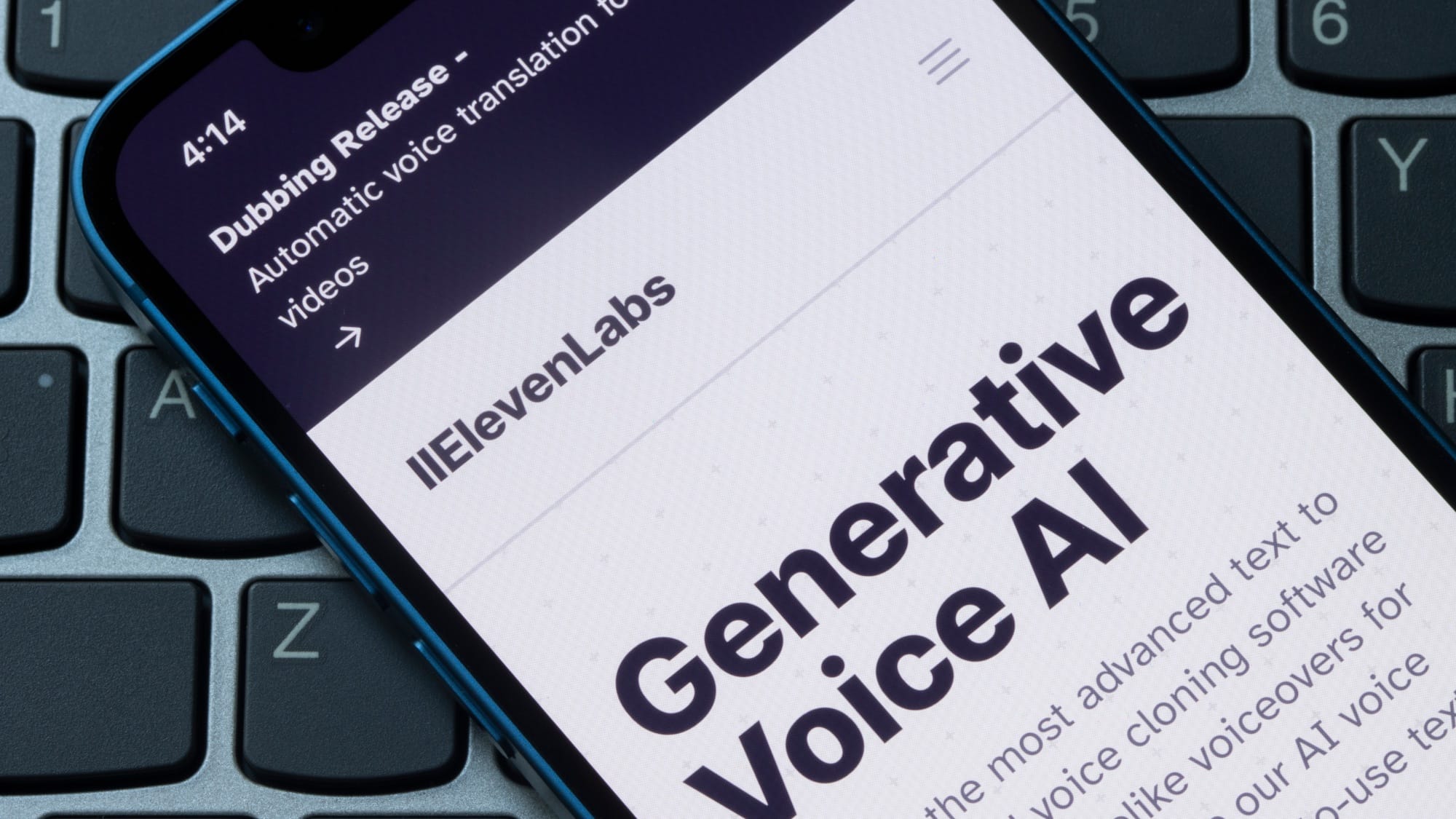
Now I use ElevenLabs.
The process is simple.
- Paste the script.
- Choose a voice.
- Adjust stability and expressiveness.
- Generate the audio.
The voices are surprisingly natural.
My Experience
One trick I've learned is never to generate the entire script in one go.
Instead, I split it into smaller sections.
If I later change one paragraph, I only regenerate that part instead of waiting for the entire audio file again.
This small habit saves a surprising amount of time.
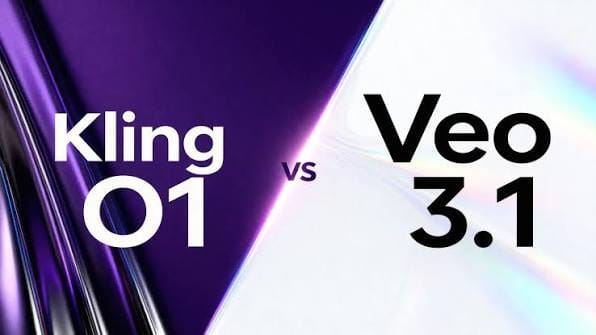
Step 5: Generating Video Clips with Google Veo or Kling AI
This is probably the most exciting part of the workflow.
Rather than searching through stock footage libraries, I generate original video clips using AI.
For example:
A young entrepreneur working in a modern office.

Warm natural lighting.

Cinematic camera movement.

Photorealistic.

4K.

16:9.
Each prompt creates a short video clip.
I repeat this process until every section of the script has matching visuals.
My Experience
AI video generation is impressive - but far from perfect.
Sometimes characters have unnatural movements.
Sometimes objects suddenly disappear.
Sometimes the camera behaves strangely.
Instead of expecting perfection, I usually generate three to five versions of each scene and keep the best one.
I've found that spending a few extra minutes generating alternatives produces much better results than trying to fix flawed clips later.
Step 6: Editing Everything in CapCut
This is where the project finally starts feeling like a real YouTube video.
I import:
- Voiceover
- AI-generated clips
- Background music
- Logo
Then I add:
- Automatic captions
- Simple transitions
- Background music
- Zoom effects where appropriate
My Experience
When I first started editing, I added too many transitions and visual effects.
Ironically, the videos looked less professional.
Now I follow a simple rule:
If an effect doesn't improve the story, I remove it.
Clean editing almost always performs better than flashy editing.
Step 7: Designing a Thumbnail in Canva
You are an experienced YouTube educator.

Write a conversational script for beginners.

Explain technical concepts using simple language.

Include practical examples and end with a clear call-to-action.
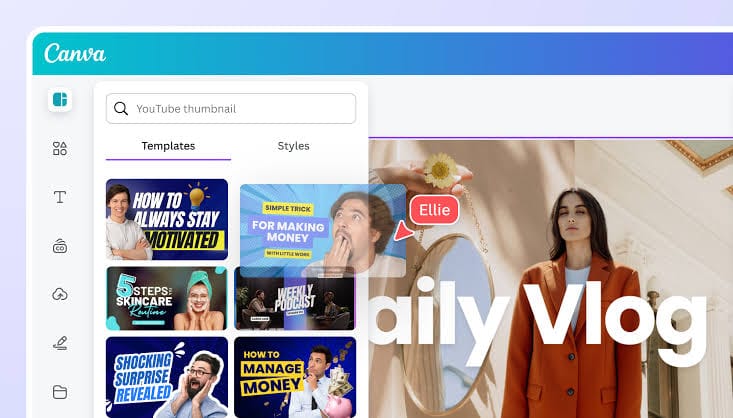
Even the best video won't perform well if nobody clicks on it.
That's why I spend extra time designing thumbnails.
I usually create AI-generated artwork first, then refine it inside Canva.
The thumbnail should communicate one clear idea within a second.
Simple designs often outperform complicated ones.
Step 8: Optimizing for Search with TubeBuddy

Uploading a video isn't the final step.
Publishing without SEO is like opening a shop in the middle of a desert.
TubeBuddy helps me find better keywords, improve titles, and write optimized descriptions.
My Experience
This was the step I ignored when I first started creating content.
Now it's one of the most important parts of my workflow.
A better title often makes a bigger difference than another hour of editing.
The Biggest Lesson I Learned
People often ask me whether AI will replace content creators.
After months of using these tools, my answer is no.
AI doesn't replace creativity.
It replaces repetitive work.
ChatGPT doesn't know your audience.
Perplexity doesn't know your opinions.
ElevenLabs can't tell your story.
Google Veo can't decide which scene creates the strongest emotional impact.
Those decisions still belong to you.
What AI does exceptionally well is eliminating the boring parts of content creation, allowing you to spend more time thinking, creating, and improving your ideas.
For me, that's the real power of AI - not replacing human creativity, but giving creators more time to use it.
Final Thoughts
This workflow isn't the only way to create YouTube videos, and it certainly isn't perfect. New AI tools appear almost every month, and today's best workflow may look different a year from now.
What has remained consistent, however, is one principle: the most effective creators don't rely on a single AI tool - they build systems where each tool does what it does best.
If you're just getting started, don't feel pressured to use every application mentioned in this guide. Begin with ChatGPT for brainstorming and writing, add one new tool as you become comfortable, and gradually build a workflow that fits your own style.
Remember, AI can help you create faster, but your ideas, experience, and perspective are still what make your content worth watching.